
Steps to Check a Stock Quote
- Open the COL Mobile app.
- Tap Market.
- In the search bar, enter the stock code (e.g., SMPH).
- Tap Enter or select the stock from the search results.
- The stock's Overview page will display the latest market information.
Tip: Tap/Swipe left or right across the tabs (Overview, Info, Financials, Dividends, Buyers & Sellers) to view additional information about the stock.
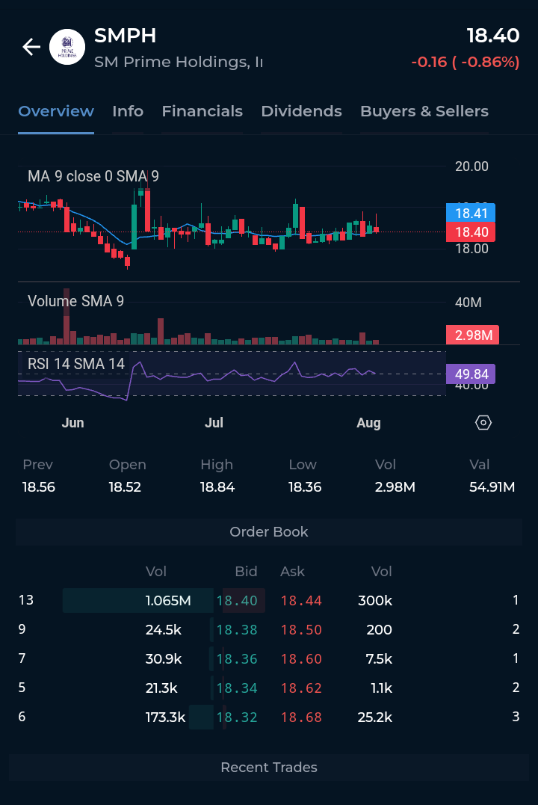
Color:
- Green: Stock is up from its opening price
- Yellow: Stock is the same as its opening price
- Red: Stock is down from its opening price
Other data:
Last Price – The most recent traded price of the stock.
Price Change – The increase or decrease in the stock price compared to the previous closing price, shown in both peso value and percentage.
Previous Close (Prev) – The stock's closing price from the previous trading day
Open – The stock's opening price for the current trading day.
High – The highest price the stock traded at during the day.
Low – The lowest price the stock traded at during the day.
Vol (Volume) – The total number of shares traded during the day.
Val (Value) – The total peso value of all shares traded during the day.